Annotate a screenshot the moment you take it
No exporting, no opening another app. The editor appears the instant you capture, and everything you add — arrows, boxes, text, blurs — stays a draggable, undoable object until you export.
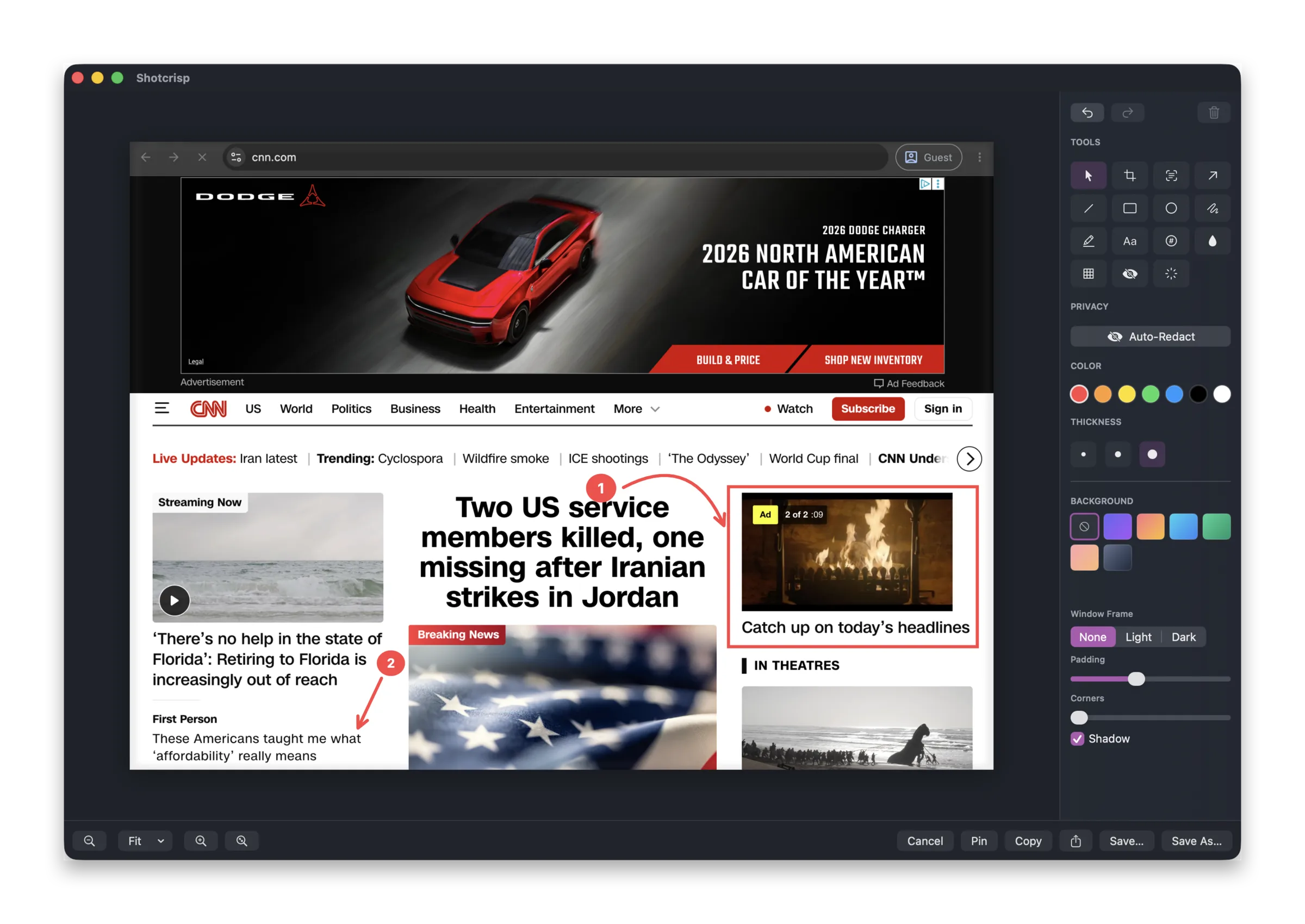
Arrows that actually point well
Grab the mid-shaft knob and curve an arrow around whatever is in the way; the tail pivots on the tip so the point stays put. Straight when you want it, bent when the layout demands it.
Shapes, text, and numbered steps
Rectangles, ellipses, freehand, and text labels — plus auto-numbered step counters for walkthroughs: click 1, 2, 3 and the sequence renumbers itself if you reorder. A rotation handle with angle snapping sits on shapes and text.
Blur, pixelate, redact — or spotlight
Three ways to make something unreadable, all flattened into the export. Or invert it: spotlight one region and everything else blurs, focusing the eye without cropping. Auto-Redact finds emails, keys, and passwords for you.
Backgrounds and frames, export-ready
Wrap a capture in a gradient or wallpaper backdrop, add padding, round the corners, or put it in a window frame — the polish that makes a shot presentable in a doc or a post, without a design tool.
Nothing is precious
Every move, resize, edit, and sweep is one ⌘Z away. Closed the editor too soon? Reopen your last capture with annotations and undo history intact.
Frequently asked questions
Can I go back to a screenshot I already annotated?
Yes — Reopen last edit brings back your most recent capture with every annotation still an editable object and the undo history intact.
What happens when I export?
Annotations, blurs, and redactions are flattened into the final image — copy it to the clipboard, save it, or share it. Until then, everything stays editable.
Is the annotation editor free?
Completely. Capture, annotation, recording, and OCR are free forever — Shotcrisp charges only for optional cloud sharing.