A clean desktop in every capture — without cleaning up
Your desktop can stay messy. During a capture, Shotcrisp swaps the icons for your actual wallpaper and keeps the Dock, menu bar, and widgets out of the shot — everything is back the moment it’s done.
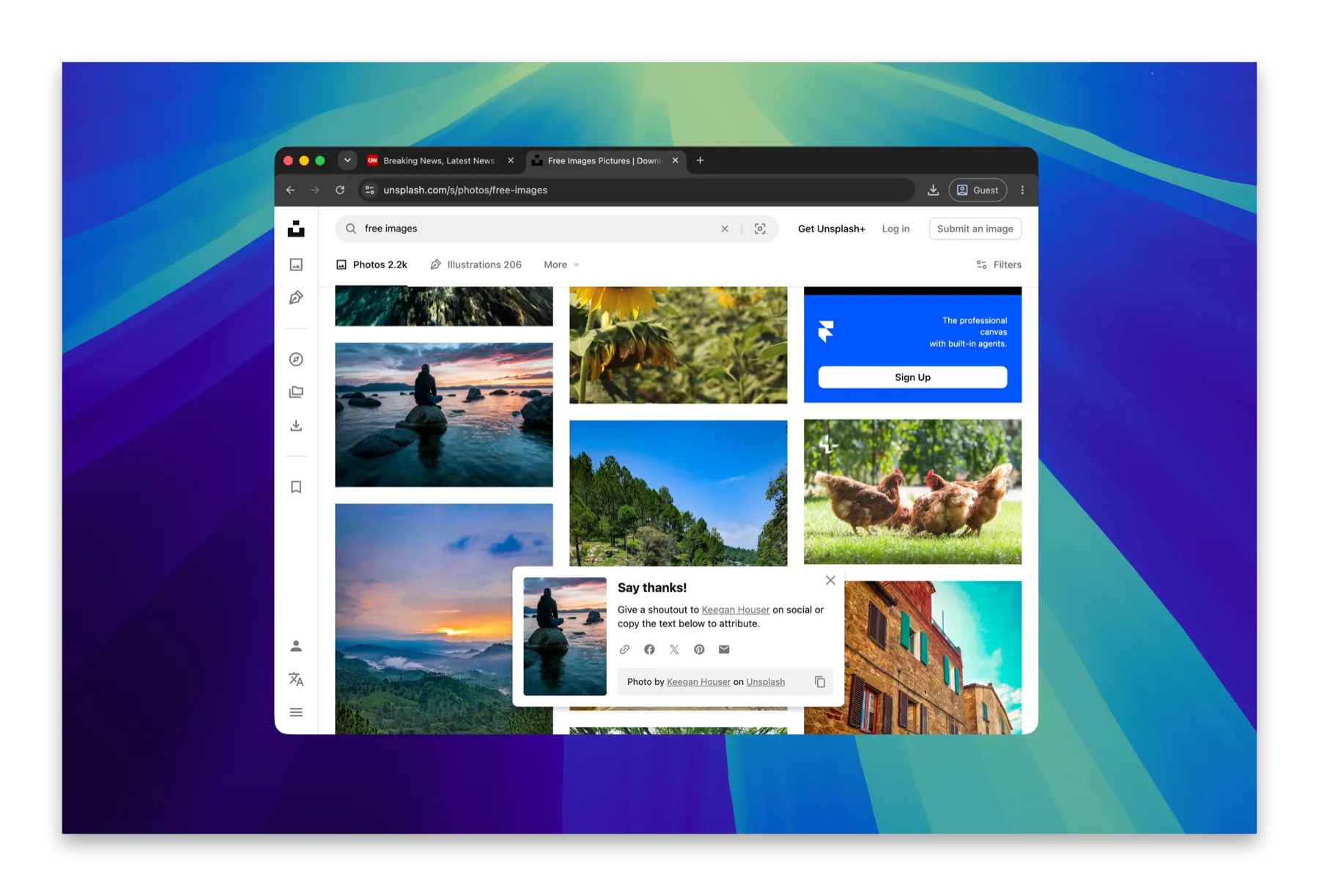
Icons vanish for the shot, not for you
When a capture starts, desktop icons are hidden and your real wallpaper shows through; when it ends, everything is exactly where it was. No “screenshot mode” you forget to turn off, no dumping files into a folder first.
Dock, menu bar, and widgets stay out too
The parts of your screen that say “this is my computer” — the Dock, the menu bar, desktop widgets — can be excluded from captures while staying fully visible to you. What ships looks like a product, not a desktop.
Notifications never land in a recording
Mid-recording banners are the classic leak: a private message rendered into a tutorial. With Shotcrisp, notifications still appear to you but never in the file — on by default.
Frequently asked questions
Do I have to tidy my desktop before presenting or capturing?
No — that's the feature. Icons hide only for the capture itself and return the instant it completes. Your actual desktop never changes.
Does the audience see my wallpaper or a fake background?
Your actual wallpaper — the capture looks like a pristine version of your real desktop, not a stock backdrop.
Can specific apps be kept out of shots too?
Yes — add 1Password, Signal, Mail, or anything else to the never-capture list and their windows can't appear in any capture, even open in the background.