Let Claude Code see your screen
One command connects Claude Code to Shotcrisp. Your agent can capture a window, read the text on screen, and annotate what it sees — while consent, app exclusions, and auto-redaction run in the middle.
One command to set up
Install Shotcrisp, enable AI agents in Settings → Privacy, then register the bundled server:
claude mcp add --scope user shotcrisp -- /Applications/Shotcrisp.app/Contents/MacOS/shotcrisp-mcpThe first call triggers a one-time approval prompt that verifies Claude Code by its code signature. Full details on the setup & trust model page.
What your agent does with eyes
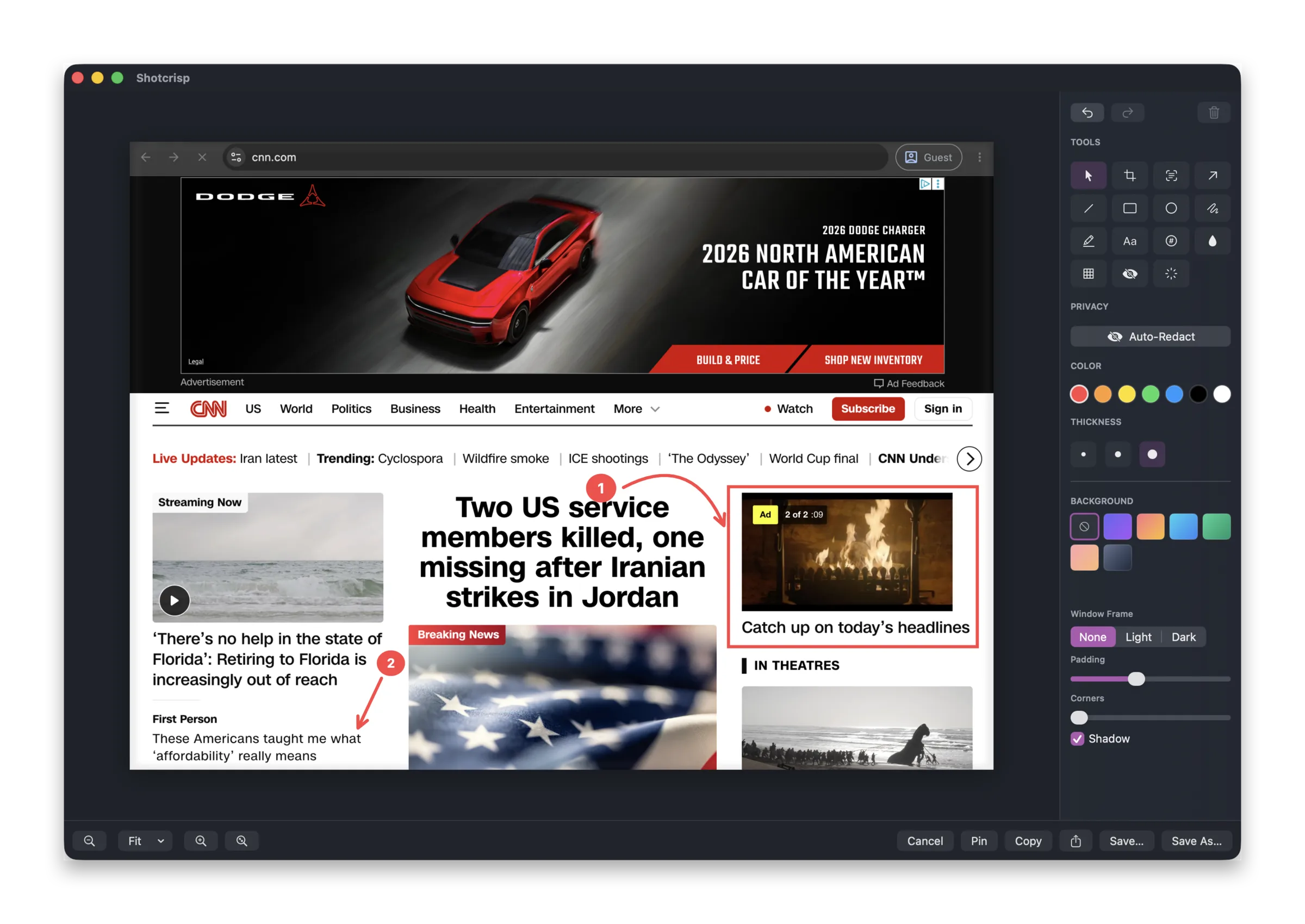
Claude Code just changed your UI — now it can capture the window and check its own work. An error dialog is blocking a script — read_screen_text reads it without you pasting anything. It needs the “Save” button's position — find_on_screen locates it by text. And annotate draws arrows and labels on a capture, ready for a bug report or PR. With save_path, captures are written to disk so the agent can attach or open them.
OCR beats pixels for agents
Most of the time an agent doesn't need an image — it needs to know what the screen says. read_screen_text returns recognized text instead of pixels: cheaper in tokens, faster, and it never ships a picture of your desktop into a model context.
Guardrails that don’t switch off
Secrets are blacked out before Claude sees a capture, never-capture apps stay invisible, the menu-bar icon flashes on every agent capture, and the activity log keeps the receipts. These run on every agent call — there is no bypass flag.
Frequently asked questions
Does this work with Claude Desktop too?
Yes — Claude Desktop takes the bundled extension instead of the CLI command. Any MCP client that launches a local stdio server can connect; each is approved separately.
Can Claude see my whole screen?
Only what it requests through the approved tools — and only after redaction and your never-capture exclusions run. Access is off by default until you enable it and approve the client.
How do I revoke access?
Remove the client in Settings → Privacy → AI Agents at any time. The activity log shows every capture it took while approved.